How to Connect Tello Drone to Controller: A Step-by-Step Guide

After a few maddening false starts, I finally nailed the perfect connection between my DJI Tello drone and controller — and the relief is real! At first, I was convinced I needed some fancy, high-end hardware to get it working properly. Turns out, it was all about the right sequence and tweaking settings in the Tello flight app.
Like many before me, I ran into those classic frustrations: the controller not detected, Wi‑Fi confusion, and those random drops that make you want to throw your drone in the air (literally). But don’t worry — this clear, step‑by‑step guide will walk you through everything from phone-only control and Bluetooth controllers to popular third‑party options. Just note that the setup can vary slightly depending on the remote controller connection you’re using.
If you’re exploring a DualShock route, see our PS4 controller walkthrough for detailed help. By the end, you’ll understand exactly how to connect Tello drone to controller, master your Tello drone setup, and enjoy smooth flights every time.
Essential Pre-Flight Checklist: Preparing Your Tello and Controller
Prevent 90% of Tello connection issues by laying the groundwork with these essential steps:
- Charge everything: Ensure your Tello battery, phone, and controller are fully charged. For best practices, learn how to charge a Tello safely and efficiently.
- Install or update the Tello app: Keep the official app and any third-party apps (like Tello FPV on Android) up to date to avoid compatibility hiccups.
- Update drone firmware: Always perform a drone firmware update via the Tello app before pairing your controllers to ensure smoother Bluetooth pairing and overall stability.
- Clear your environment: Step away from crowded 2.4 GHz Wi-Fi zones, avoid microwave ovens and metal structures to reduce signal interference impacting your Tello Wi-Fi connection.
- Prepare your phone: Disable VPNs and captive portals that might block connections. If necessary, enable Airplane Mode, then re-enable Wi-Fi and Bluetooth to reset network states.
- Calibrate for accuracy: If flight controls feel off after pairing, perform controller calibration following this quick Tello calibration refresher.
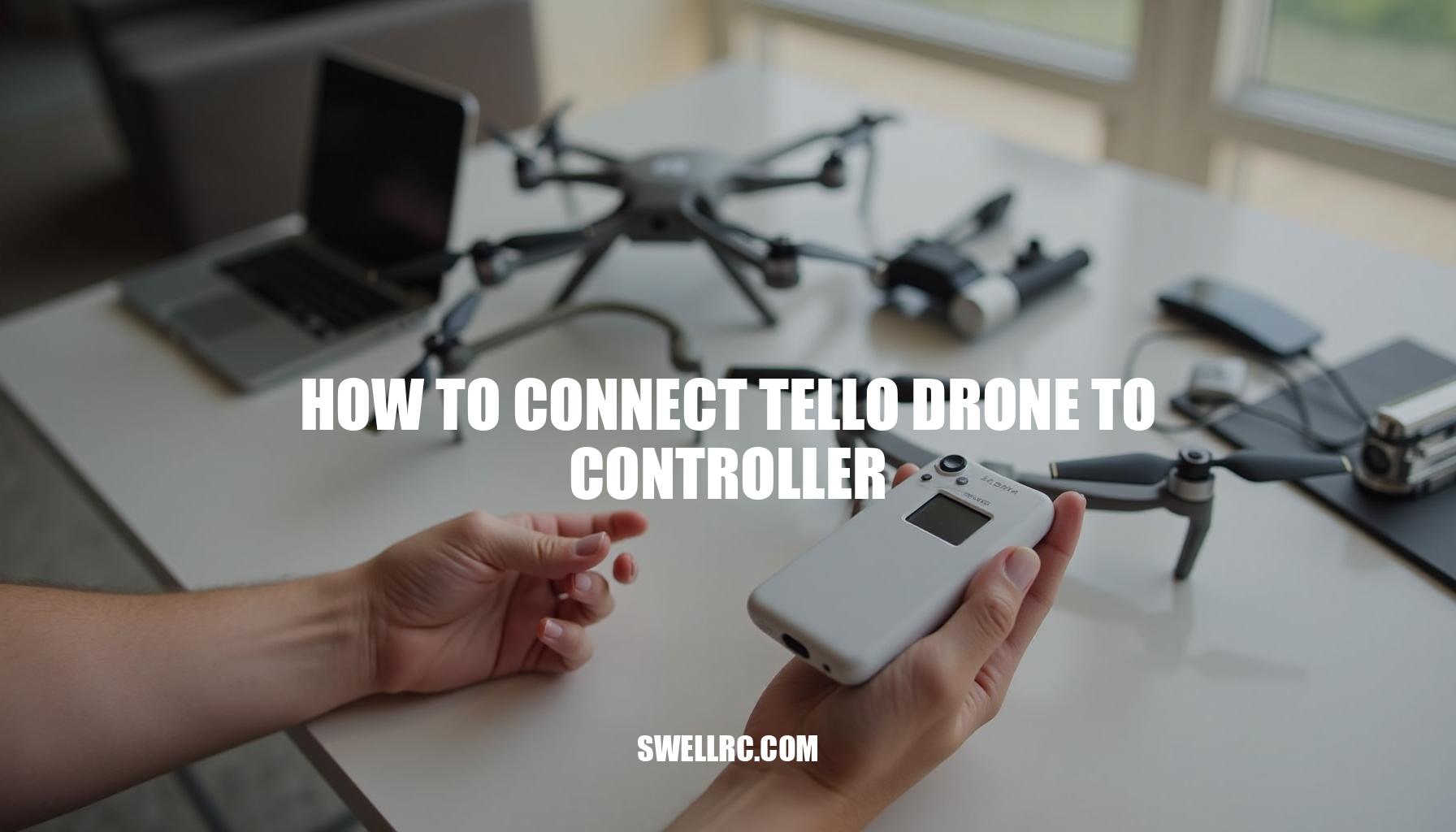
- Understand the connection flow: Remember, the phone connects directly to the Tello drone over Wi-Fi, while your controller pairs to the phone using Bluetooth—never directly to the drone.
Popular Tello-Compatible Controller Paths
| Controller/Path | Connection Type | App Required | Pairing Method | Notes |
|---|---|---|---|---|
| GameSir T1d/T1s | Bluetooth (BLE) | Tello app or third-party | Pair in OS Bluetooth, then enable in app | Most seamless with Tello |
| DualShock 4 (PS4) | Bluetooth | Third-party (often Android) | Pair in OS, map in app | iOS support varies by app |
| Generic Bluetooth gamepad | Bluetooth | Third-party (varies) | Pair in OS, map in app | Not all pads are recognized by Tello apps |
By following these practical, been-there tips on drone firmware update, controller calibration, and maintaining a clean Tello Wi-Fi connection environment, you’ll save time troubleshooting. Proper Bluetooth pairing of controllers is the key to unlocking smooth flying experiences and avoiding common Tello drone troubleshooting scenarios.
Step-by-Step Guide: How to Connect the Tello Drone to a Controller
Getting your Tello drone and Bluetooth controller connected can feel daunting at first. But here’s the specific sequence that finally made everything click for me, laid out in crisp, easy-to-follow steps—so you won’t have to second-guess anything.
Step-by-step guide to pair your Tello drone with a controller:
- Charge up and power on your Tello drone. After powering on, wait patiently for its status LEDs to stabilize—this signals it’s ready for connection.
- Install and open the Tello flight app on your phone, whether Android or iPhone. The app may prompt you to update the drone’s firmware—go ahead and do this to ensure seamless compatibility.
- Connect your phone to the Tello’s Wi-Fi network. This step is absolutely crucial—if your phone isn’t connected to the Tello Wi-Fi, no Bluetooth pairing will work. Need help?
Follow this quick and straightforward guide to connect Tello to Wi-Fi.
- With your phone still connected to Tello’s Wi-Fi, open your phone’s Bluetooth settings and pair your controller—be it a DualShock, GameSir, or any supported pad. Watch for LED patterns on your controller as it enters pairing mode for confirmation.
- Return to the Tello app and navigate to Settings > Bluetooth Controller (or the equivalent if you use a different flight app). Enable the controller and verify stick input; moving the sticks should trigger on-screen feedback.
- Look for an on-screen controller icon or stick movement indicators. This visual confirmation means your Bluetooth pairing is successful and your controller is properly mapped.
- Perform a brief hover test in an open area to make sure the drone responds smoothly and precisely to your controller inputs.
Android vs. iPhone nuances:
- Android: The Tello app sometimes doesn’t recognize certain controllers directly. Third-party apps can bridge this gap. If you’re facing problems, check out this dedicated Android phone connection primer for extra tips on Bluetooth pairing and Tello Wi-Fi connection stability.
- iPhone: iOS’s Bluetooth controllers support can be a bit finicky. For best results, follow this detailed iPhone-specific setup guide. It tackles common pitfalls and helps you master Bluetooth pairing with the Tello flight app.
Specialized controllers mini-segment:
| Controller | Connection Notes |
|---|---|
| GameSir T1d / T1s | Pair via Bluetooth first, then enable the controller inside your chosen flight app. For a focused walkthrough, check the GameSir + Tello connection guide. |
| DualShock 4 (PS4) | Often requires a third-party app for mapping on Android devices. Remember, not every generic Bluetooth pad maps correctly—your app’s compatibility really matters. Refer to our PS4 guide mentioned earlier for detailed instructions. |
By following these precise steps, along with platform specific nuances and controller notes, you’ll efficiently solve “how to pair Tello drone with controller” and enjoy smooth flights controlled via Bluetooth. Remember, monitoring LED patterns on your controller and watching for on-screen controller icons in the Tello flight app provide invaluable cues that your Bluetooth pairing is solid and you’re ready to take off. Happy flying!
Troubleshooting: Why Your Tello Drone Might Not Be Connecting
We’ve all been there—trying to connect your Tello drone only to face frustrating connection hiccups. Most common Tello drone connection issues fix revolve around simple environmental or software hiccups that can be quickly resolved once identified. Below are the typical problems many face, followed by quick fixes and why they work:
- Tello Wi‑Fi doesn’t show up: Power-cycle the Tello and move away from congested routers. The drone broadcasts its own SSID, but 2.4 GHz congestion often hides it due to interference.
- Phone keeps switching back to home Wi-Fi: Temporarily forget your home network to force your phone to stay connected to Tello’s SSID.
- Controller pairs with phone but not detected in app: Remove and re-pair your controller, then enable it inside the app’s controller settings. Some apps only detect controllers after connecting to Tello’s Wi-Fi.
- Firmware mismatch: Update Tello firmware through the app; outdated firmware can cause controller detection failures.
- App conflicts: Force-quit other gamepad or screen-overlay apps, as they might hijack controller inputs.
- Severe input lag: Reduce 2.4 GHz noise by stepping outdoors, keep your phone close to the drone, and close unnecessary background apps.
- Low battery weirdness: Under-voltage causes flaky behavior—recharge your Tello fully before flying.
Here’s a compact diagnostic table summarizing these points:
| Symptom | Likely Cause | Fix |
|---|---|---|
| No SSID | 2.4 GHz congestion | Reboot, move away from routers, retry connection |
| Phone hops to home Wi-Fi | Automatic network preference | Forget home Wi-Fi temporarily |
| Controller not detected in app | Not enabled in app | Toggle controller in app settings after pairing |
| Firmware mismatch | Outdated firmware | Update firmware in app |
| Input lag | RF interference or background apps | Reduce interference, close apps, stay close to drone |
| Low battery issues | Under-voltage | Recharge battery fully |
If these quick fixes don’t solve your Tello drone troubleshooting struggles, consider Bluetooth interference or other advanced causes which require deeper dives. For the comprehensive guide detailing why your Tello might not connect and exactly how to fix each case, check out this resource: Here’s the complete breakdown of why a Tello might not connect and how to fix it.
Advanced Tips: Perfecting the Tello Controller Experience
Enhancing your drone’s control feel and reliability hinges on a series of pro-level tweaks that every pilot should master. Minimizing lag starts with reducing interference: always fly in open spaces, maintain a clear line-of-sight between your phone and the drone, and avoid proximity to routers or crowded areas that contribute to Bluetooth interference. Activating Airplane Mode on your phone, then selectively re-enabling Wi-Fi and Bluetooth, can dramatically cut down on background chatter, resulting in smoother connectivity.
Next, fine-tune your controller sensitivity through third-party apps. Adjust parameters like sensitivity, exponential response (expo), and dead zones to your preference. Introducing a small dead zone helps eliminate micro-jitters, while a gentler expo curve smooths out movements—especially beneficial for beginners seeking more intuitive control.
Controller calibration is equally critical. After transporting or experiencing bumps, recalibrate your drone via the app before flight to correct any drift. Controllers, like those from GameSir, require you to ensure they are physically centered before mapping controls, maintaining precise responsiveness during flight.
For optimal video smoothness, close unnecessary apps that consume resources and lock your screen brightness. Maintaining ample free storage space also reduces stutters when streaming or recording live feeds, providing a seamless and reliable visual experience.
To broaden your piloting skills, explore connections with different beginner drones. Comparing connection flows and interference management strategies, such as those for DEERC and Potensic drones (DEERC connection guide and Potensic connection guide), reveals patterns that help you optimize Tello flight control intuitively.
Conclusion: Taking Flight with Confidence
There’s nothing quite like the moment when Tello drone setup clicks into place: you connect your phone to the Tello Wi‑Fi, pair your controller to the phone via Bluetooth, enable the controller in the Tello flight app, and test hover to confirm everything’s synced perfectly.
With your best controller for Tello drone in hand and controller mapping configured just right, those smoother, more confident flights feel incredibly rewarding. Remember, ongoing maintenance like occasional recalibration and quick environment checks are key to keeping your flights silky-smooth.
Ready to take your skills further? Explore more of SwellRC’s setup and troubleshooting guides to expand your drone toolkit and keep mastering every flight.
Frequently Asked Questions
- How do I connect my Tello drone to a controller?
Connect your phone to the Tello’s Wi‑Fi, pair your Bluetooth controller to the phone, then enable and test the controller inside the Tello (or supported third‑party) app. - Why is my Tello controller not connecting to the drone?
Because the controller pairs with your phone—not the drone—make sure your phone is on the Tello Wi‑Fi first, then pair the controller via Bluetooth and enable it in the app. Update firmware and re‑pair if it still fails. - Can I use any Bluetooth controller with the Tello drone?
No. Some controllers (e.g., GameSir T1d/T1s) work smoothly, while others need third‑party apps—or won’t map correctly at all. Check app compatibility before buying. - How do I connect the Tello drone to my phone and controller at the same time?
Join your phone to the Tello’s Wi‑Fi, then pair the controller to the phone via Bluetooth. Open the app and confirm the controller is recognized before takeoff. - Does the Tello drone need Wi‑Fi to pair with the controller?
Yes. Tello creates a Wi‑Fi network your phone must join. The controller then links to the phone via Bluetooth; it does not connect directly to the drone. - What controllers are compatible with the Tello?
GameSir T1d/T1s are commonly supported. DualShock 4 and some other pads can work through third‑party apps (often on Android). Always verify app support for your device. - How do I fix lag or delay between the controller and Tello drone?
Fly in an open area away from busy 2.4 GHz sources, keep the phone close to the drone, close background apps, and ensure firmware and apps are up to date.